Download Aparat Video Online
MediaPuller helps you download available videos from Aparat.com directly through your browser. Paste an Aparat video link, click Go, and check the download options prepared for that specific video.
This page is made for people who want to save Aparat videos for offline access, personal reference, study, or later viewing. It focuses on direct Aparat video pages, so you get the best result when you use the exact URL of the video you want to save.
Save Aparat Videos from a Direct Link
Aparat is a video platform with many types of content, including educational clips, entertainment videos, tutorials, public channel uploads, and Persian-language media. When you find a video you want to keep on your device, MediaPuller can process the link and show the available file options when they can be retrieved.
The downloader works best with a direct Aparat video URL. Links to profile pages, search results, categories, comments, or general platform pages may not point to one exact video file. For the most reliable result, open the video page first and copy the link from there.
How to Use the Aparat Downloader
You do not need to understand any technical details to use the tool. The whole process is based on copying one Aparat video link and checking the file options returned by MediaPuller.
Step 1. Open Aparat and go to the video page you want to save.
Make sure you are viewing the video itself, not only a channel, search result, or category page.
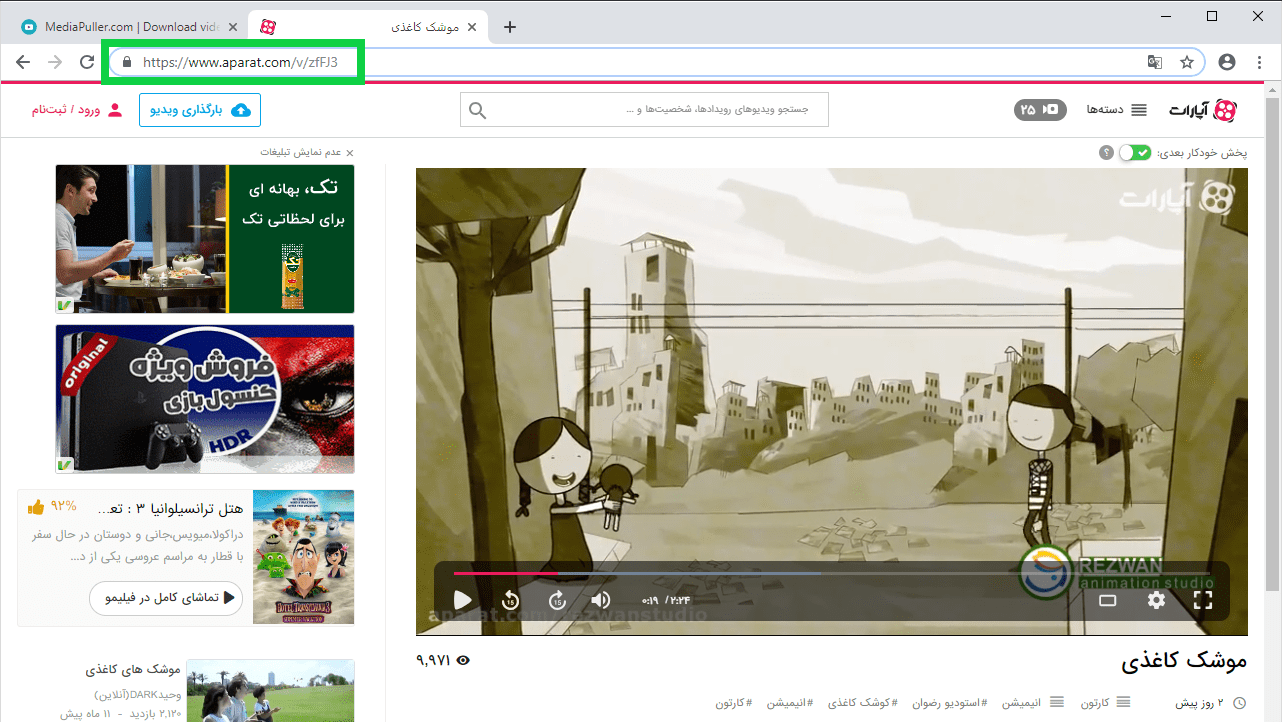
Step 2. Copy the Aparat video URL from your browser address bar or from the sharing option on the page.
A direct video URL gives MediaPuller a clearer target to process.
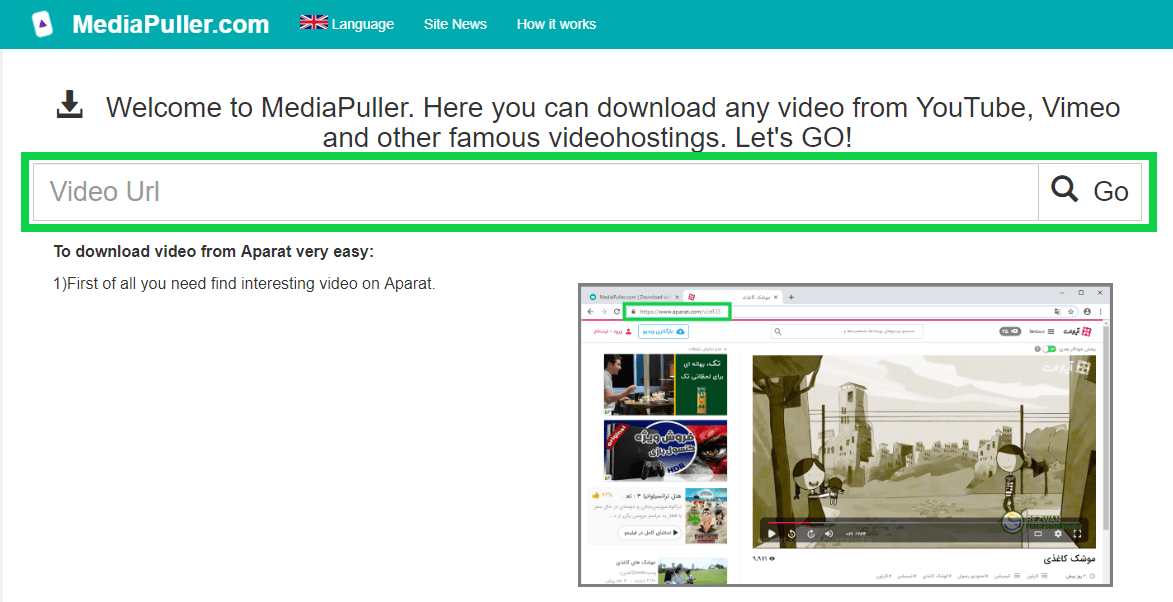
Step 3. Paste the copied link into the input field on MediaPuller and click Go. The service will check the URL and prepare the available results for that video.
Step 4. Review the returned download options.
Depending on the video, you may see different qualities, file types, or available versions.
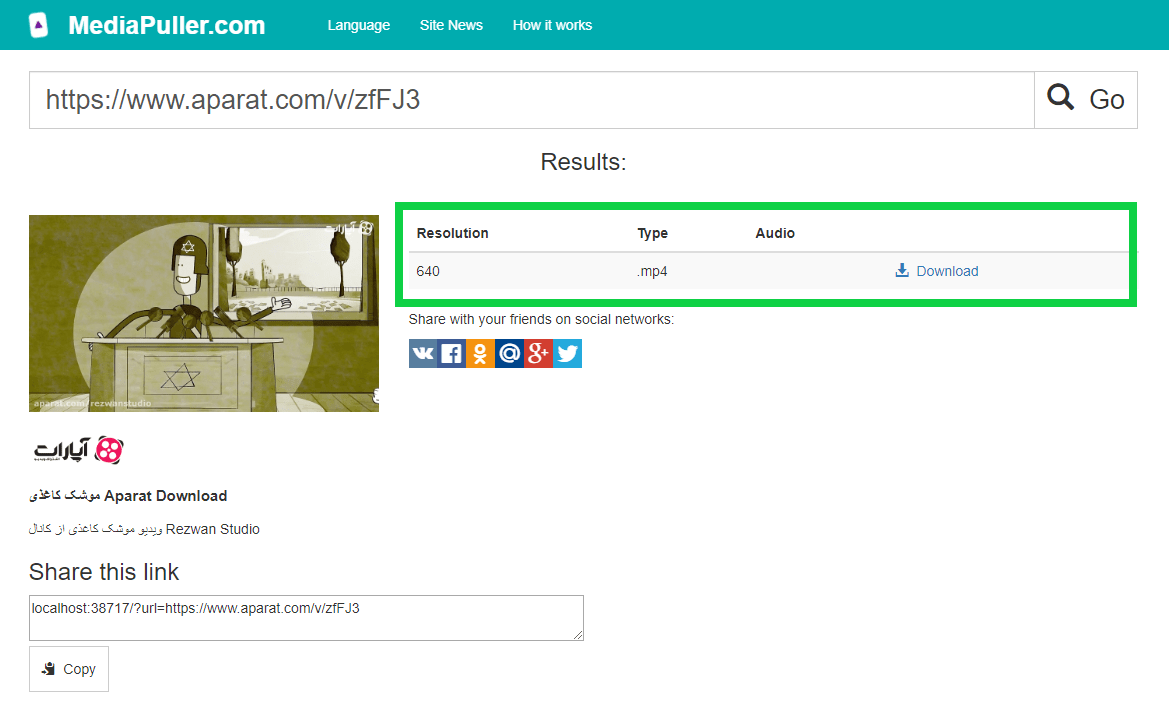
Step 5. Select the option that fits your device and click the download link.
A smaller file can be better for mobile storage, while a higher-quality option may be better for larger screens.
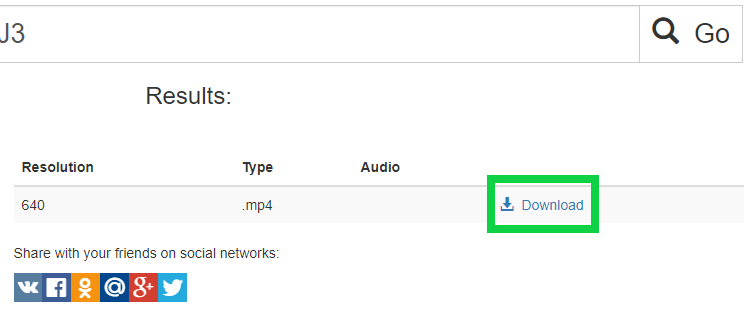
Step 6. Save the file through your browser. If the video opens in a browser player instead of downloading immediately, use the browser download icon, save option, or context menu.
What Makes Aparat Links Different?
Aparat pages may include video content, channels, playlists, search pages, embedded players, and other platform sections. Not every page URL is equally useful for downloading. A direct video page gives the downloader the clearest signal and reduces the chance of getting no result.
If a copied URL does not work, open the video in a normal browser tab, wait until the page loads, and copy the link again. Avoid copying links from search pages or dynamic feeds when possible.
When This Aparat Downloader Is Useful
Saving an Aparat video can be useful when you want to keep a reference file on your device, watch a tutorial later, prepare material for travel, or avoid searching for the same clip again. The tool is especially helpful when you already have the exact Aparat video URL and simply need a clean way to process it.
MediaPuller does not require a complicated workflow. Instead of browsing through several tools, you can paste the link, wait for the result, and choose the file option that makes sense for your situation.
Available Aparat Video Options
The options shown after processing depend on the original video and what can be retrieved for that link. Some Aparat videos may provide several quality levels, while others may return only one available file or no downloadable result at all.
Before saving, check the visible file information carefully. A lower-quality file may download faster and take less space, while a higher-quality version may look better on a desktop monitor or TV.
Using Aparat Downloader on Mobile
You can use MediaPuller from a mobile browser on Android or iPhone. Copy the Aparat video link, paste it into the downloader, and review the available result list.
Mobile browsers can handle downloads differently. Some save files directly to a downloads folder, while others open the video first and require you to use the browser menu to save it. This behavior depends on your device, browser, and system settings.
Why an Aparat Link May Not Work
An Aparat link may fail if the video is private, removed, restricted, copied incorrectly, temporarily unavailable, or technically unsupported. A link to a channel, search result, or general page may also fail because it does not point to one exact video.
If this happens, try copying the URL again from the original Aparat video page. You can also test another public Aparat video link to check whether the issue is related to the specific video or to the copied URL.
Important Note About Rights and Permissions
Make sure you have the right to save or use the content you download. Respect creators, content owners, and platform rules. Download videos only when you are authorized to do so or when your use is allowed by applicable law.
Aparat Downloader FAQ
What type of Aparat link should I paste?
Use a direct link to a specific Aparat video page. Links to channels, search pages, categories, or general Aparat sections may not provide the same result.
Can I download every Aparat video?
No. MediaPuller can only show download options when the video is available and the link can be processed. Some videos may be unavailable because of privacy settings, restrictions, removed content, or technical limits.
Why does my Aparat URL return no result?
The URL may be copied incorrectly, may point to a non-video page, or the video may be restricted, removed, private, or temporarily inaccessible. Try opening the video page again and copying the full URL from the browser address bar.
Can I download Aparat videos on Android?
Yes, you can use MediaPuller in an Android browser. The final saving process depends on the browser and the available download option returned for the Aparat video.
Can I download Aparat videos on iPhone?
You can use MediaPuller in a mobile browser on iPhone. File saving behavior may depend on iOS, your browser, and the type of file returned after processing the link.
Why does the Aparat video open instead of downloading?
Some browsers open video files in a built-in player first. If this happens, use the download icon, browser menu, or save option to store the file on your device.
Can I save only a short part of an Aparat video?
MediaPuller processes the available file for the submitted Aparat link. If you need only a selected fragment, you may need to edit the saved file separately after downloading.
Does MediaPuller modify the original Aparat video?
No. MediaPuller does not edit, delete, or change the original Aparat video. It only processes the submitted link and displays available file options when they can be retrieved.
More Video Download Tools
MediaPuller also supports other video platforms. You can continue with the Instagram Downloader , YouTube Downloader , Vimeo Downloader , Facebook Downloader , DailyMotion Downloader , ccMixter Downloader , TikTok Downloader , Coub Downloader , x.com Downloader , Tumblr Downloader , Threads Downloader , Reddit Downloader , Pinterest Downloader , SoundCloud Downloader , Twitch Downloader , Spotify Downloader , Rumble Downloader , Niconico Downloader , Snapchat Downloader , Bluesky Downloader , Kwai Downloader , Flickr Downloader , LinkedIn Downloader , VK Downloader , OK.ru Downloader , Xiaohongshu Downloader and Archive.org Downloader