Your connection, fewer limits
Supported media requests go from your computer to the source service, so they do not depend on the shared MediaPuller server IP.
MediaPuller Helper quietly runs in the Windows tray and lets supported downloads use your own IP address. You keep using the MediaPuller website exactly as before.
A portable ZIP with no installer wizard. Extract it, launch Helper, and it stays available in the notification area.
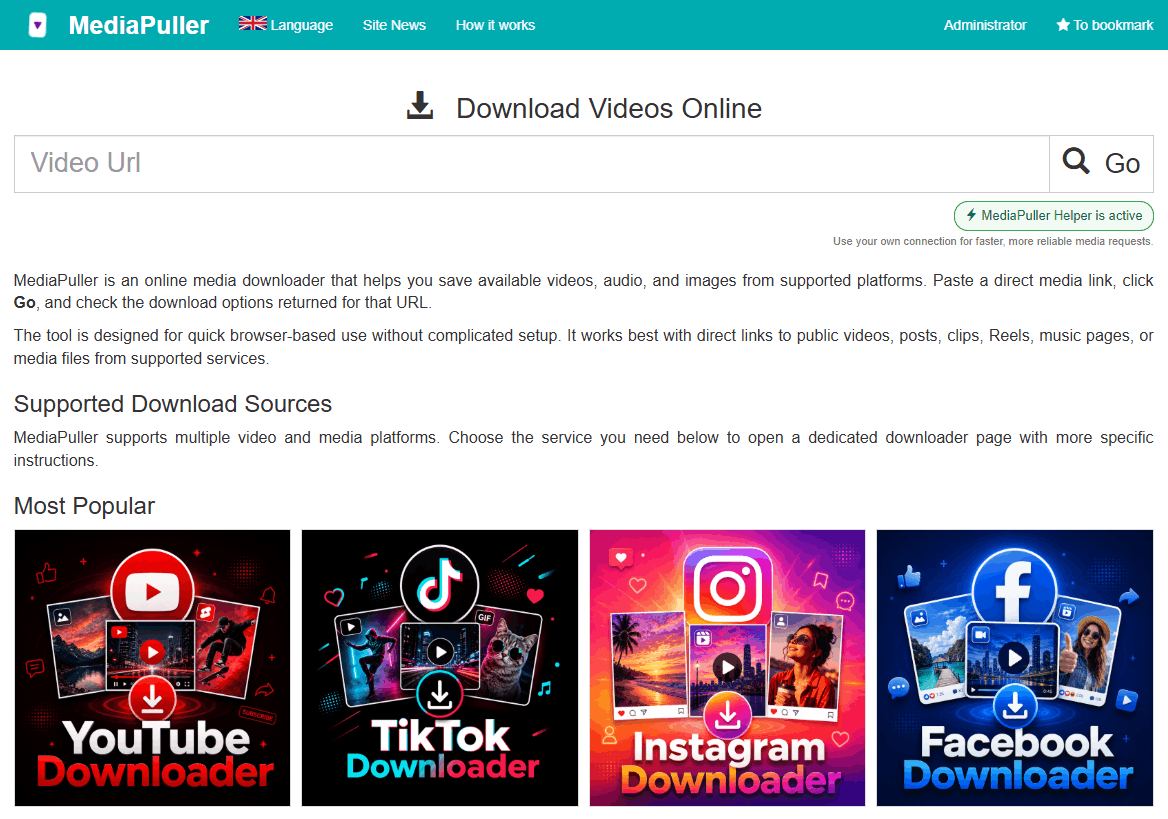
Supported media requests go from your computer to the source service, so they do not depend on the shared MediaPuller server IP.
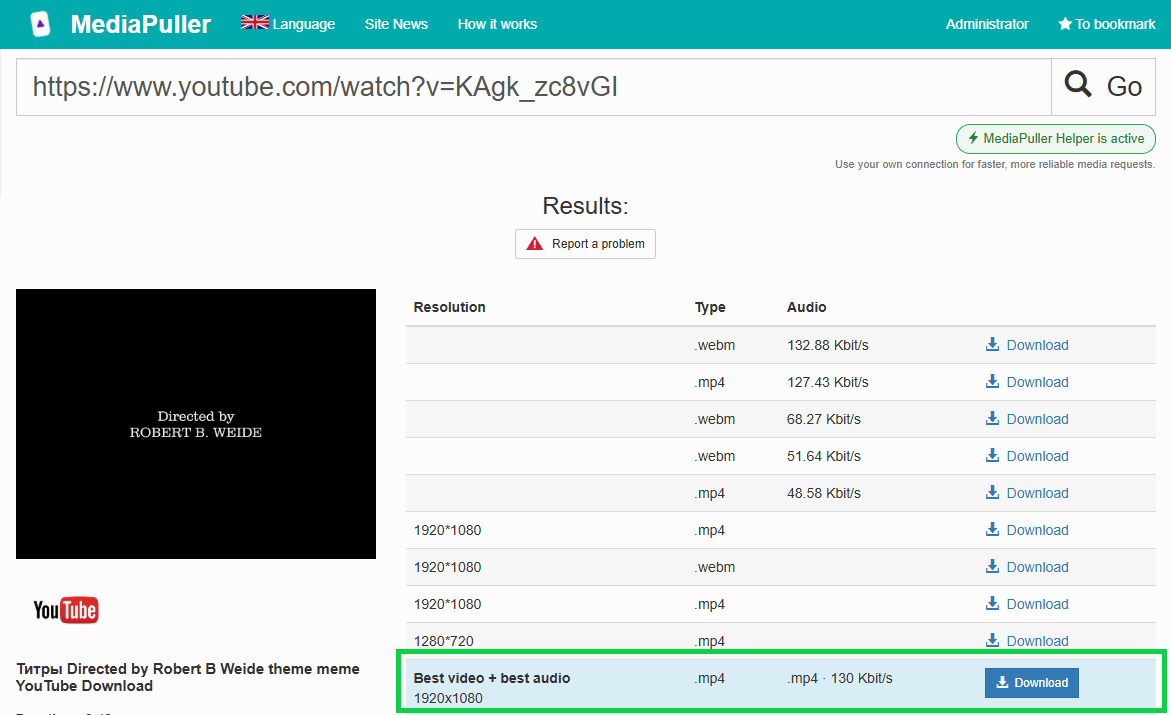
Paste a link and press Go as usual. The site detects Helper automatically and falls back to the MediaPuller backend when a platform is not supported locally.
Helper listens only on your computer, has no main window, and can be opened, updated or closed from its tray menu.
There is no separate downloader interface to learn. Helper adds local processing to the MediaPuller flow you already know.
Download the official portable ZIP, extract the complete folder, launch MediaPuller.Helper.exe and look for the MediaPuller icon in the Windows notification area.
The small link below the Go button changes to “MediaPuller Helper is active” automatically.
For supported platforms, extraction and compatible downloads use your connection. Everything else continues through the standard backend.
Helper stays out of the way. Its tray menu shows the connection, version, language and update controls.
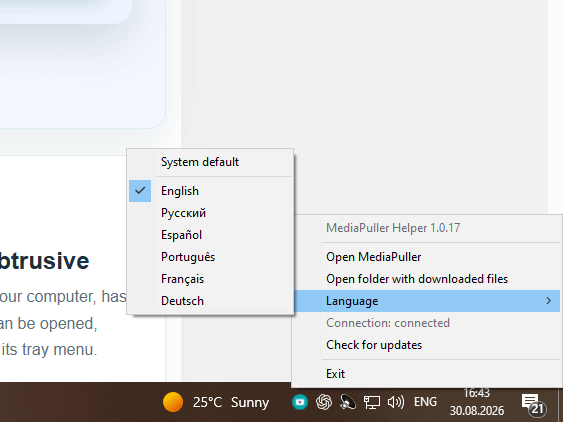
No setup wizard is required. Keep the extracted folder together and run Helper whenever you want MediaPuller to use your connection.
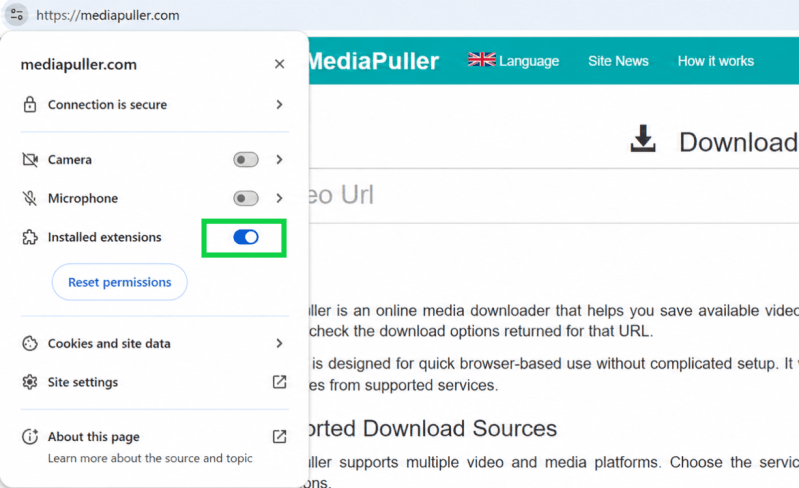
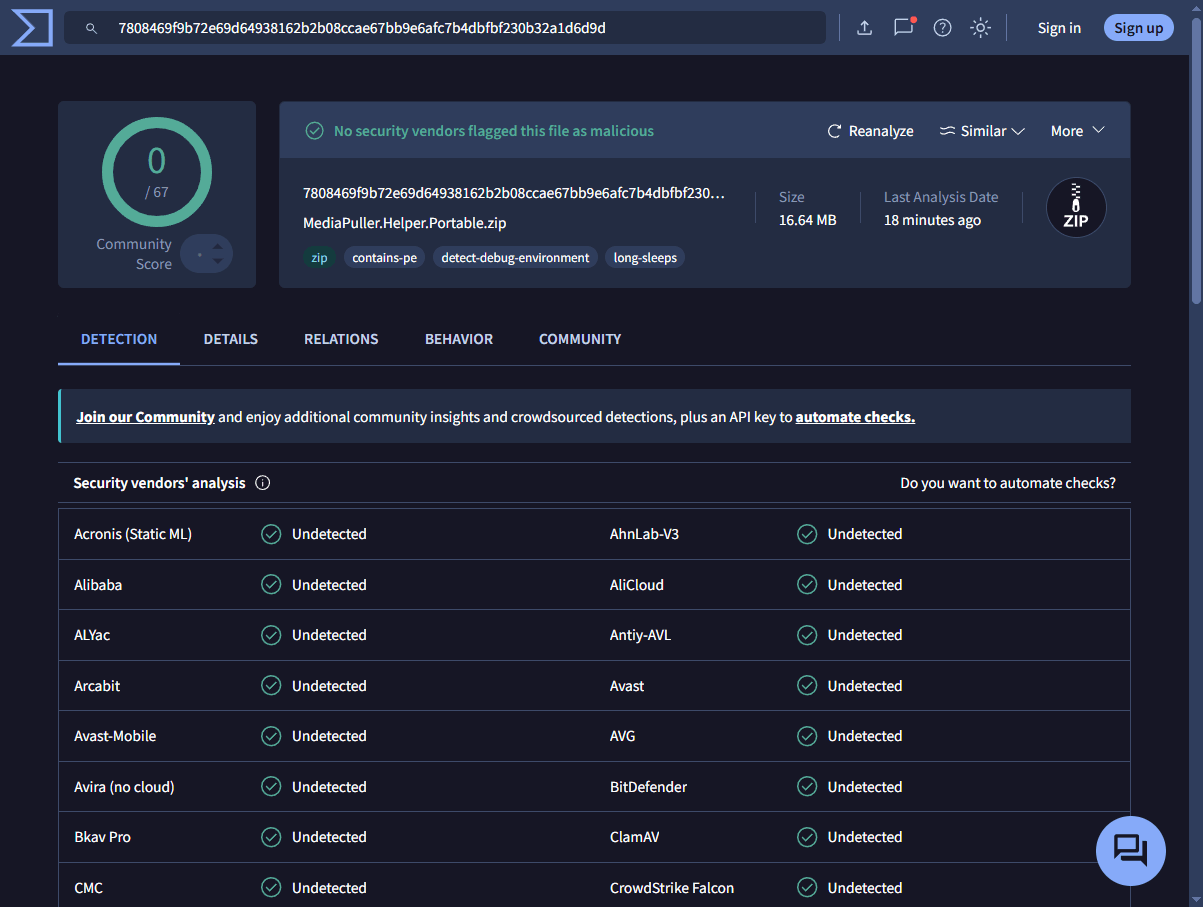
The published MediaPuller Helper portable ZIP was checked by VirusTotal. At the time of analysis, no participating security vendor flagged the archive as malicious.
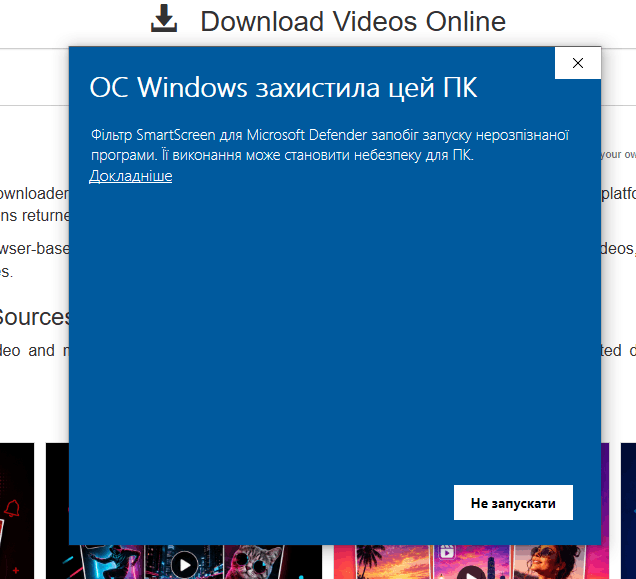
Windows SmartScreen may display a blue security notice the first time you open MediaPuller Helper. This is expected for the current build.
The current Helper EXE is not signed with an Authenticode certificate from a trusted publisher and is still building SmartScreen reputation. The notice is about publisher verification; by itself it does not mean the file is malicious.
Download Helper only from mediapuller.com. In the SmartScreen window choose More info, verify the file name MediaPuller.Helper.exe, and then choose Run anyway. You can also scan the file with Microsoft Defender before opening it.
For locally supported Helper operations, your computer contacts the media source and downloads directly. Unsupported platforms continue to use the standard MediaPuller backend.
Yes, while you want the website to use it. Helper is lightweight and stays in the notification area; choose Exit from its menu to stop it.
Helper checks only when you select Check for updates in the tray menu. Exit Helper, download the new portable ZIP, replace the extracted folder, and start Helper again.
The current Helper build is for 64-bit Windows 10 and Windows 11. The MediaPuller website continues to work without Helper on other systems.

Download Helper, launch it once and continue using MediaPuller exactly as before.