Download Instagram Video Online
MediaPuller helps you save available videos from Instagram by using a direct Instagram link. Paste a link to an Instagram Reel, video post, or public media page, click Go, and check the download options returned for that content.
Instagram is not a classic video hosting platform. Videos can appear as Reels, feed posts, carousel items, profile uploads, or shared links. That is why the quality of the copied URL matters: the best result usually comes from a direct link to the exact Instagram post or Reel you want to save.
Download Instagram Videos from Reels and Posts
Instagram videos are often discovered inside the mobile app, in Reels, on profile grids, in Explore, or inside shared messages. For MediaPuller, the most useful link is not the profile itself, but the direct media URL that points to one specific piece of content.
If the Instagram video is public and the link can be processed, MediaPuller will prepare the available download results. Some links may return one file option, while others may show different available versions depending on how the media is stored and retrieved.
How to Copy the Right Instagram Link
The main mistake people make is copying a profile link, hashtag page, Explore page, or an incomplete shared link. Open the exact Reel or post first, then copy the link from the Instagram share option or from the browser address bar.
Step 1. Open Instagram and find the Reel or video post you want to save.
Make sure you are viewing the actual media page, not only a profile, feed, hashtag, or search result.
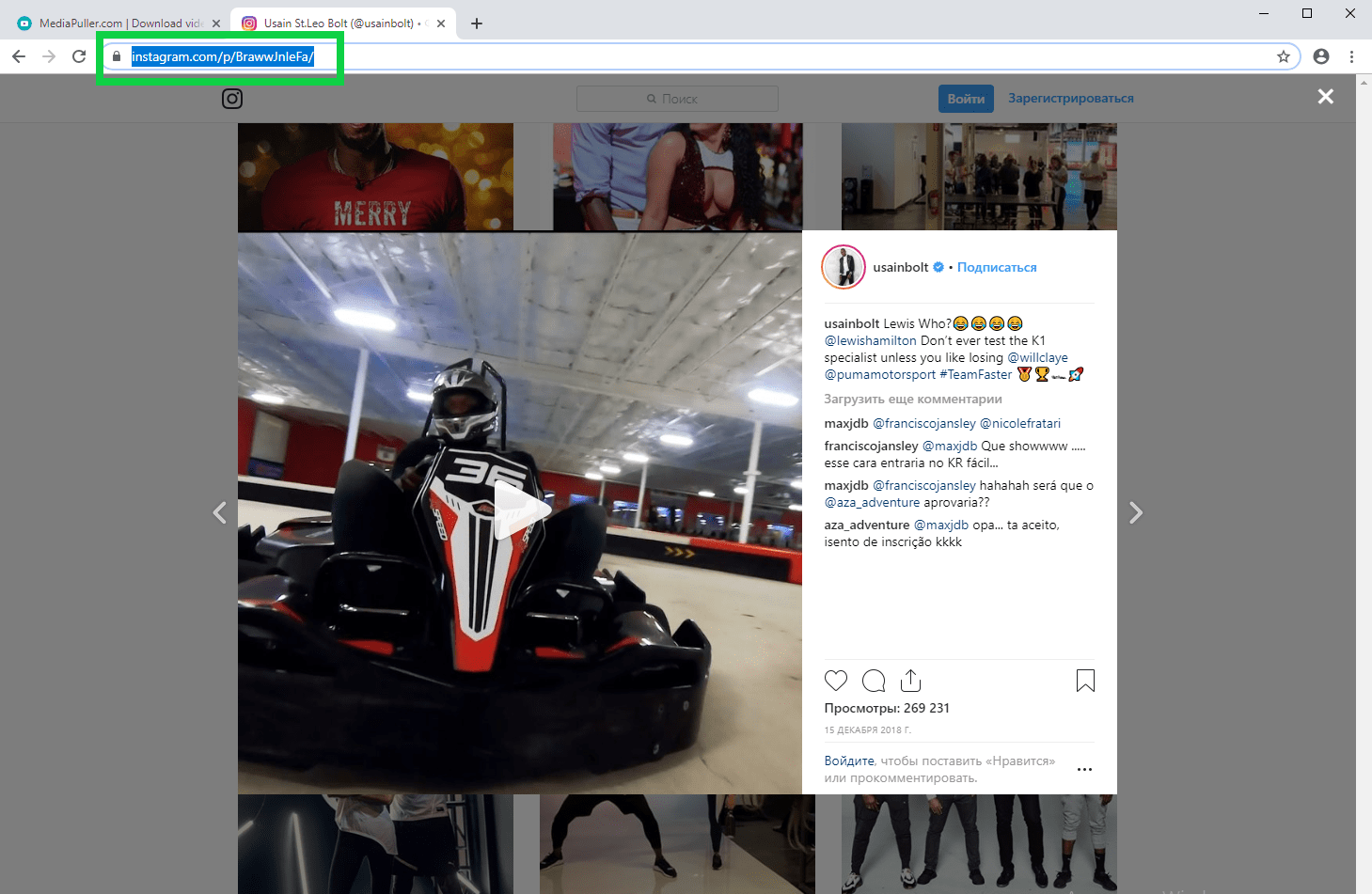
Step 2. Copy the Instagram link from the share menu or from the browser address bar.
A direct post or Reel URL gives MediaPuller a clearer target to process.
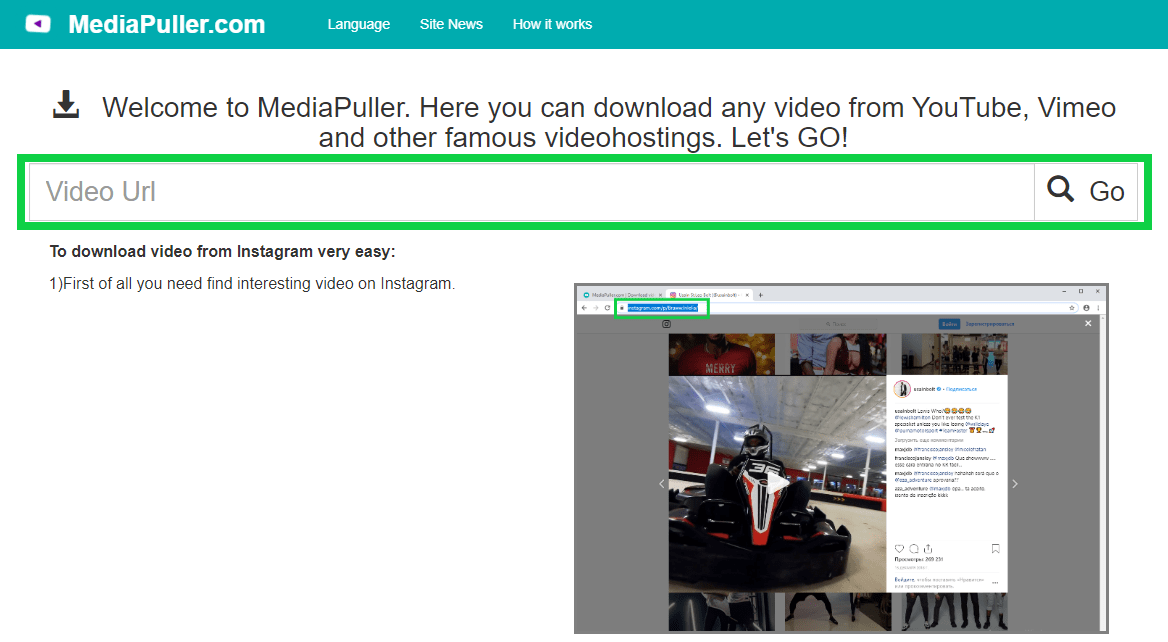
Step 3. Paste the copied Instagram link into the MediaPuller input field and click Go. The service will check the submitted URL and look for available video options.
Step 4. Review the returned results.
If the link can be processed, you may see the available Instagram video file or other media options related to the submitted URL.
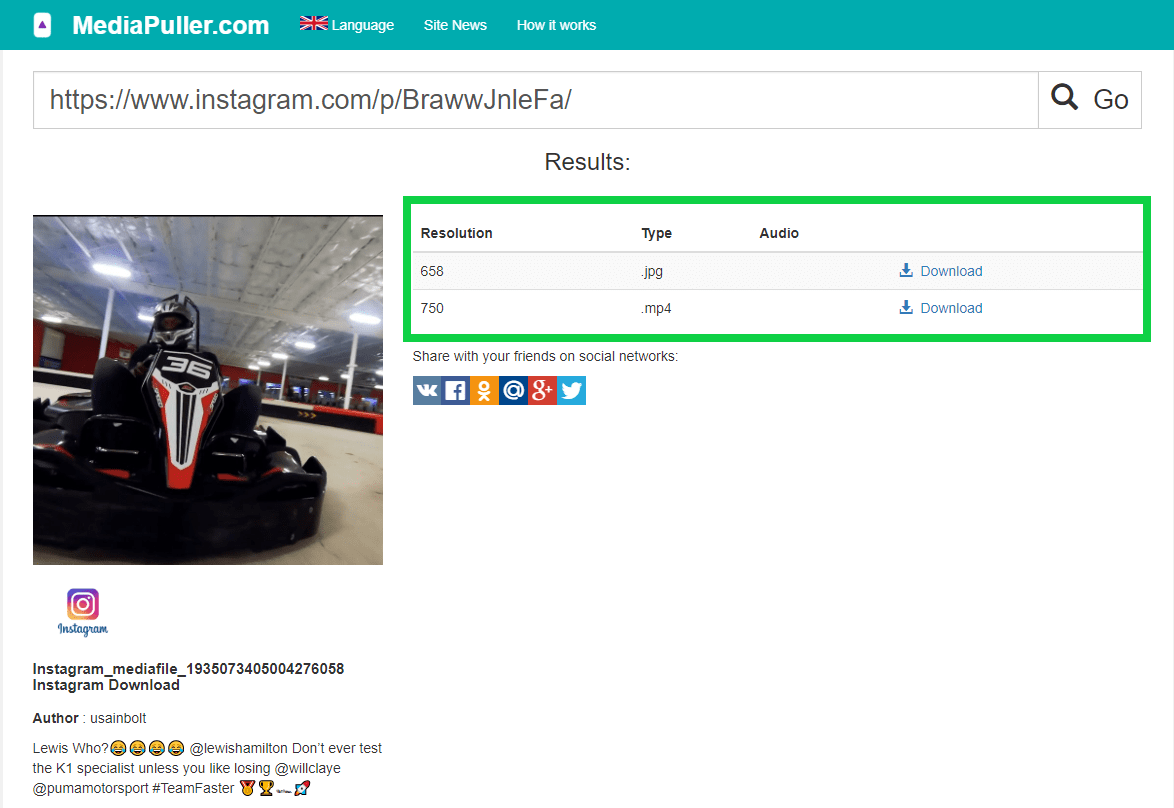
Step 5. Choose the available option that fits your device and click the download link.
For mobile storage, a smaller file can be more convenient; for larger screens, choose a higher available quality when it appears.
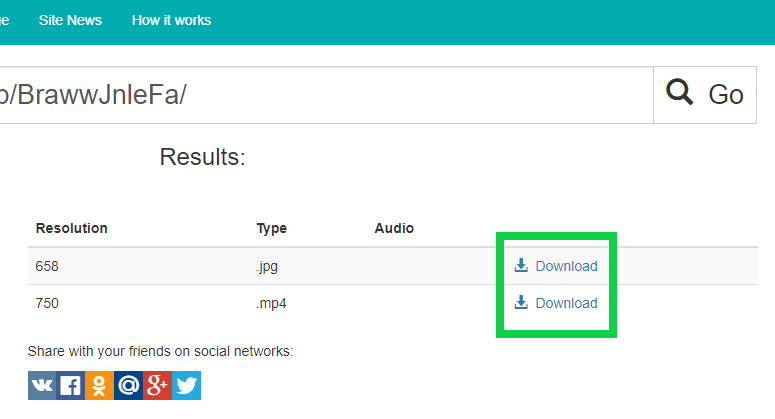
Step 6. Save the file through your browser. If the video opens in a built-in player instead of downloading immediately, use the browser download icon, save option, or context menu.
Instagram Reels, Posts, and Carousel Videos
Instagram media can be structured in different ways. A Reel usually points to one short-form video, while a regular post may contain a single video, a photo, or a carousel with several media items. Because of this, two Instagram links can behave differently even if they look similar.
If a carousel contains more than one item, the returned result may depend on what can be detected and retrieved from that post. Always check the result list before saving, especially when the Instagram post contains multiple images or videos.
Public Instagram Links Work Best
MediaPuller works best with public Instagram content that can be accessed and processed. Private accounts, restricted content, removed posts, expired content, or links that require special access may not return download options.
If a link does not work, try opening the post in a normal browser tab and copying the URL again. Avoid using links copied from private messages, app previews, notifications, or broken redirects when possible.
Using Instagram Video Downloader on Mobile
Many Instagram links are copied from the mobile app, so mobile behavior matters. You can open MediaPuller in a mobile browser, paste the copied Instagram link, and check the available download result.
Android and iPhone browsers may save files differently. One browser may start the download directly, while another may open the video first and require you to use the share menu, download icon, or save option manually.
Why an Instagram Link May Not Return a Video
An Instagram URL may not return a result if it points to a profile, hashtag, Explore page, login page, deleted post, private account, unsupported media type, or temporary redirect. The link may also fail if it was copied incompletely or if the content is not available anymore.
When this happens, open the exact Reel or post again and copy the full link from Instagram. You can also test another public Instagram video link to see whether the problem is related to one specific post.
When This Instagram Downloader Is Useful
Saving an Instagram video can be useful when you want to keep a reference clip, watch a Reel later, save educational content, collect material for personal viewing, or avoid searching for the same post again. The tool is designed around simple link processing instead of complicated manual steps.
MediaPuller does not change the original Instagram post. It only processes the link you submit and shows available file options when they can be retrieved.
Important Note About Rights and Permissions
Make sure you have the right to save or use the content you download. Respect creators, copyright owners, account owners, and platform rules. Download Instagram videos only when you are authorized to do so or when your use is allowed by applicable law.
Instagram Video Downloader FAQ
What Instagram links should I paste?
Paste a direct link to an Instagram Reel, video post, or public media page. Links to profiles, hashtags, Explore pages, login pages, or general feeds may not return the same result because they do not point to one exact video.
Can I download Instagram Reels?
Yes, you can try using a direct Instagram Reel URL. If the Reel is public, available, and can be processed, MediaPuller will show the available download options for that link.
Can I download videos from private Instagram accounts?
No. MediaPuller is intended for available public Instagram content that can be accessed and processed. Private, restricted, removed, or unavailable posts may not return download options.
Can I download Instagram Stories?
The downloader above is intended for direct Instagram post and Reel links. For active public Stories, use the Anonymous Instagram Story Viewer to view available photos and videos without login.
Why does my Instagram link not work?
The link may point to a profile, hashtag, Explore page, private post, deleted post, unsupported media type, or incomplete URL. Try opening the exact Instagram Reel or post again and copying the full link.
Can I download Instagram carousel videos?
You can try using the direct link to the carousel post. If the video items can be detected and processed, MediaPuller may show available media options returned for that post.
Can I use MediaPuller on Android?
Yes, you can open MediaPuller in an Android browser and paste an Instagram video link. The final saving process depends on your browser, device settings, and the returned file option.
Can I use MediaPuller on iPhone?
You can use MediaPuller in a mobile browser on iPhone. File saving behavior may depend on iOS, your browser, and the type of media file returned after processing the link.
Why does the Instagram video open instead of downloading?
Some browsers open video files in a built-in player before saving them. If this happens, use the browser download icon, share menu, context menu, or save option to store the file on your device.
Does MediaPuller modify the original Instagram post?
No. MediaPuller does not edit, delete, repost, like, or modify the original Instagram post. It only processes the submitted link and displays available file options when they can be retrieved.
More Video Download Tools
MediaPuller also supports other video platforms. If you need to save a video from another site, you can also try the YouTube Downloader , Vimeo Downloader , Facebook Downloader , DailyMotion Downloader , Aparat Downloader , ccMixter Downloader , TikTok Downloader , Coub Downloader , x.com Downloader , Tumblr Downloader , Threads Downloader , Reddit Downloader , Pinterest Downloader , SoundCloud Downloader , Twitch Downloader , Spotify Downloader , Rumble Downloader , Niconico Downloader , Snapchat Downloader , Bluesky Downloader , Kwai Downloader , Flickr Downloader , LinkedIn Downloader , VK Downloader , OK.ru Downloader , Xiaohongshu Downloader and Archive.org Downloader